
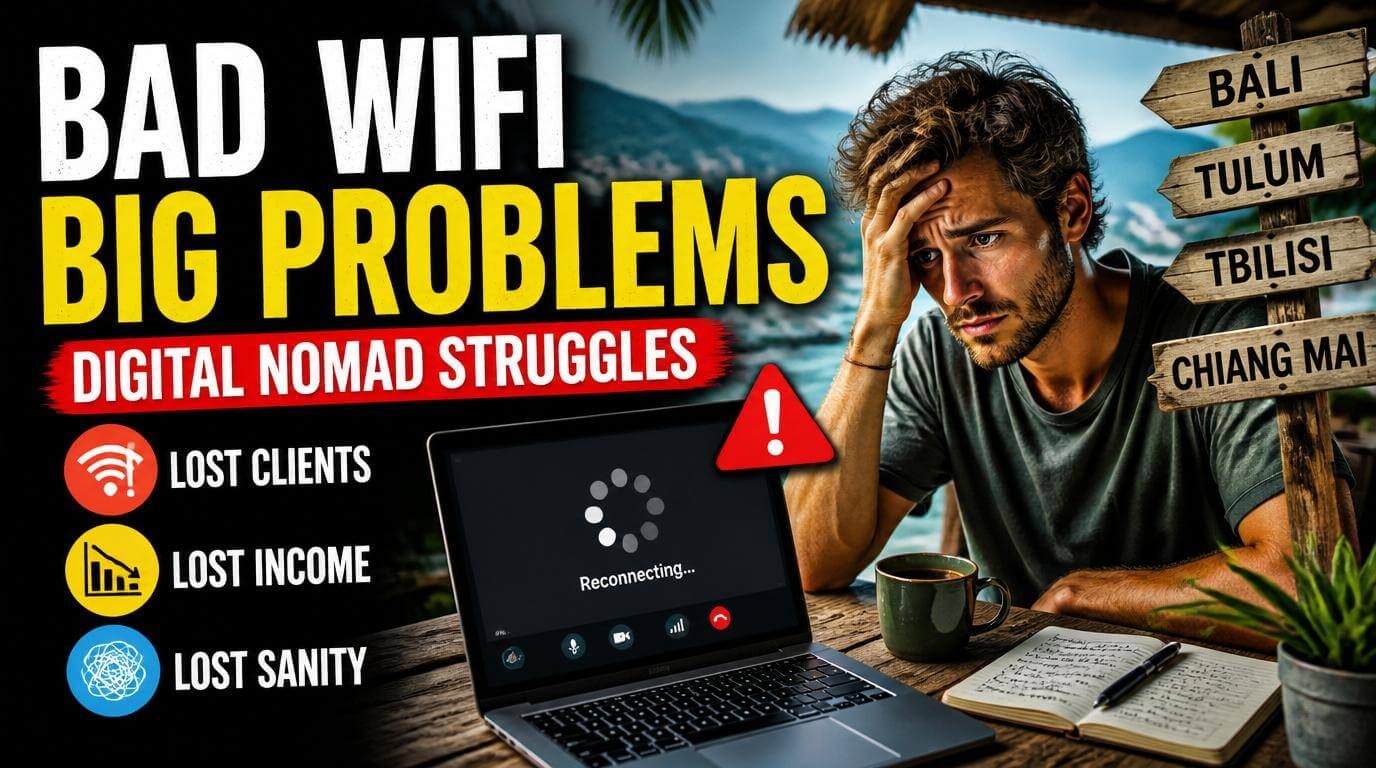
If you’ve ever searched for travel guidance for digital nomads who struggle with unstable wifi connections, you already know the specific panic of watching a loading bar freeze during a client call. I’ve been working remotely across Southeast Asia, Eastern Europe, and Latin America for three years now. Reliable internet is not a given. Most “work from anywhere” advice skips this ugly truth. Bad WiFi doesn’t just slow you down. It threatens your income, your reputation, and your sanity.
1. Stop Trusting Accommodation WiFi Listings
That little WiFi icon on Booking.com or Airbnb means almost nothing. I once booked a “high-speed internet” apartment in Tbilisi, Georgia, only to find out the router was a repurposed 2015 model shared between six units. The speed test clocked in at 2 Mbps on a good day.
Before you book anywhere, message the host directly and ask for a recent Speedtest.net screenshot. Check reviews specifically for WiFi complaints. Filter by “work” or “internet” in the review search. If the host can’t provide a speed test or gets vague, that tells you everything. One extra message saves you days of frustration.
2. Carry Your Own Mobile Hotspot (Not Just Your Phone)
Your phone’s personal hotspot is a backup, not a strategy. Phones overheat, batteries drain fast, and tethering eats through data plans. A dedicated mobile hotspot device like the Netgear Nighthawk M6 or the Solis X gives you a stable, purpose-built connection you can rely on when cafe WiFi crumbles.
I carry a Nighthawk with a local SIM card in every country I visit. It has saved client calls in Bali, Zoom presentations in Medellín, and file uploads in rural Portugal. Buy an unlocked device before your trip and grab prepaid data SIMs at the airport when you land. In most countries, 30 to 50 GB costs under $15.
3. Build an Offline Workflow Before You Need One
Here’s travel guidance for digital nomads who struggle with unstable wifi connections that most people ignore until it’s too late: build your offline workflow before the WiFi dies. Google Docs works offline if you enable it in advance. Notion has offline mode on desktop. Figma lets you keep working on cached files.
Set this up while you’re on solid WiFi. Download everything you’ll need for the next 48 hours. Save reference materials as PDFs. Draft emails in your Notes app and send them in batches when you’re connected. I write entire blog posts offline in iA Writer and sync them later. The goal is making disconnection a minor inconvenience, not a crisis.
4. Pick Destinations With Infrastructure, Not Just Vibes
Canggu looks gorgeous on Instagram. But the internet infrastructure across much of Bali still relies on undersea cables that go down during storms. Meanwhile, Bucharest, Romania, has some of the fastest and cheapest internet in the world. South Korea’s average speed puts most Western countries to shame.
Before you pick your next base, check the Speedtest Global Index for country-level data. Look up coworking spaces on Coworker.com and read reviews about connectivity. Some cities that consistently deliver for remote workers include Chiang Mai, Lisbon, Buenos Aires, Tallinn, and Kuala Lumpur. Beautiful places with actual broadband exist. You don’t have to choose between scenery and a stable connection.

5. Always Have a Backup Location Within Walking Distance
Even in cities with great infrastructure, individual connections fail. Routers restart. Power goes out. Construction crews cut cables. You need a Plan B within 10 minutes of wherever you’re staying, always.
When I arrive in a new city, I spend my first afternoon scouting two or three backup spots. A coworking space with day passes. A Starbucks (say what you want, their WiFi is usually solid). A library. A hotel lobby. I keep a running list in my phone with addresses, WiFi passwords, and notes about outlet availability. The day your primary connection dies 20 minutes before a deadline, you’ll be grateful you did this homework. It’s the least glamorous habit that has saved me the most.
6. Use a VPN, But Pick One That Handles Bad Connections Well
Most digital nomads already use a VPN. But not all VPNs handle flaky connections equally. Some drop your session the moment the signal wobbles, forcing you to reconnect and re-authenticate constantly. That’s miserable on unstable WiFi.
ExpressVPN and Mullvad both handle connection interruptions smoothly in my experience. NordVPN’s NordLynx protocol reconnects fast after drops. Avoid free VPNs entirely. They throttle your already struggling bandwidth and sell your data. When you’re working on a connection that’s barely holding together, your VPN should be helping, not making things worse. Test yours on a weak connection before you actually depend on it.
7. Schedule Your Hardest Tasks Around Peak Connectivity
WiFi in most places follows a pattern. Early mornings are fast because fewer people are online. Evenings are slow because everyone’s streaming Netflix. I learned this the hard way in a coworking space in Bangkok where afternoon speeds dropped to nearly unusable levels every single day.
Track the pattern for your first two days in any new location. Run speed tests at different hours. Then schedule video calls, large uploads, and anything bandwidth-heavy for the fastest windows. Push lighter tasks like writing, planning, or editing to the slow periods. This single adjustment reduced my WiFi-related stress by about 80 percent. You’re not fighting the connection anymore. You’re working with it.

8. Compress Everything Before You Send It
Uploading a 50 MB presentation over shaky WiFi is a recipe for failed transfers and lost time. Compress files before sending them. Use TinyPNG for images. Handbrake shrinks video files dramatically. For documents, PDF compression tools like Smallpdf cut file sizes in half without visible quality loss.
I also switched from sending large email attachments to sharing cloud links through Google Drive or Dropbox. The file uploads in the background, and the recipient gets a lightweight link. If a transfer fails halfway, cloud platforms resume where they left off. Raw uploads through email don’t. This small shift has saved me hours of re-uploading the same files over unreliable connections.
9. Communicate Proactively With Clients About Connectivity
Nothing damages client trust faster than going silent during a call and pretending it didn’t happen. I’ve found that being upfront about working from different time zones and occasionally challenging internet actually builds trust, not weakens it.
At the start of any project, I tell clients my backup plan. “If my video drops, I’ll switch to my hotspot and rejoin within 60 seconds.” That sentence alone puts people at ease. I also keep my camera off by default on shaky connections because video eats bandwidth that audio needs. Most clients care about results, not whether they can see your face. Being honest and prepared matters far more than pretending you’re sitting in a perfect home office.
10. Invest in the Right Travel Gear for Connectivity
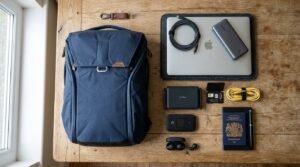
A few small purchases make a massive difference. A USB-C powered travel router like the GL.iNet Beryl AX lets you create your own private network from any ethernet port. Some hotel lobbies and cafes have ethernet available but weak WiFi, and this little router turns that wired connection into your own fast, secure signal.
A portable power bank (at least 20,000 mAh) keeps your hotspot running through long work sessions. A SIM card tool and a universal SIM adapter kit mean you’re never stuck without connectivity at the airport. I also carry a short ethernet cable. It weighs nothing, and twice it’s been the difference between working and not working. Good gear won’t fix every WiFi problem, but it fills the gaps that software alone can’t.
Travel Guidance for Digital Nomads Who Struggle With Unstable WiFi: The Mindset Shift
The biggest change that helped me wasn’t a gadget or an app. It was accepting that unstable WiFi is a feature of this lifestyle, not a bug. Once I stopped expecting every connection to be perfect and started building systems around imperfection, the stress dropped dramatically.
You plan for rain when you travel. You plan for flight delays. Planning for bad WiFi is the same thing. The nomads who thrive long-term aren’t the ones who find perfect internet everywhere. They’re the ones who’ve built a workflow that survives without it.
Frequently Asked Questions
What’s the best mobile hotspot for digital nomads?
The Netgear Nighthawk M6 is my top pick for reliability and speed. It supports 5G and WiFi 6, handles multiple devices, and works with SIM cards from most countries. The Solis X is a solid alternative if you want built-in global data plans without buying local SIMs. Both outperform phone tethering significantly.
How do digital nomads find reliable WiFi before traveling?
Check the Speedtest Global Index for country averages. Search Coworker.com for coworking reviews mentioning internet speed. Message Airbnb hosts for speed test screenshots before booking. Facebook groups like “Digital Nomads Around the World” often have recent, honest reports about WiFi quality in specific cities and neighborhoods.
Can you work remotely with only a mobile data connection?
Yes, but you need enough data. In countries like Thailand, Vietnam, and Romania, prepaid data plans offer 50 to 100 GB for under $20 monthly. Pair that with an offline workflow for non-essential tasks, and a data-only setup works well for most remote jobs. Video-heavy roles will burn through data faster, so monitor usage closely.
What travel guidance for digital nomads with unstable wifi connections matters most?
The single most impactful thing is having a mobile hotspot with a local SIM as your backup connection at all times. Everything else, offline workflows, file compression, schedule adjustments, layers on top of that foundation. If your primary WiFi fails and you have no backup, no amount of planning saves you. Redundancy is everything.
Should I choose coworking spaces or cafes for remote work?
Coworking spaces win for reliability. They invest in business-grade internet with backup connections and ethernet options. Cafes are fine for light work, but their WiFi is designed for customers browsing Instagram, not uploading project files. If connectivity is critical for your work, budget for coworking day passes. It’s a business expense that pays for itself.
How do I handle video calls on bad WiFi?
Turn your camera off immediately. That alone frees up significant bandwidth for audio. Use your mobile hotspot instead of the local WiFi if possible. Switch from Zoom to a lighter platform like Google Meet. Pre-share your screen slides or documents so attendees can follow along even if your connection stutters. Always warn attendees upfront that you might have a brief interruption.
Conclusion
Bad WiFi will always be part of the nomad experience, but it doesn’t have to wreck your work or your mood. Build the systems, pack the gear, and stop relying on a single connection for everything that matters. What’s the worst WiFi disaster you’ve survived on the road?